


You fill in the whole form, attach your certificate, press upload and get a red message: "File size must be less than 200 KB." This happens on exam portals, job sites, visa and tax websites, university applications and bank KYC pages. The good news is that almost every oversized PDF can be brought under the limit without becoming unreadable, if you know what makes it big in the first place.
Why a small document can be a big file
A PDF made of typed text is tiny: a page of text is usually a few dozen kilobytes. The size comes from images. A photo of a certificate taken with a phone camera is often 3 to 5 MB, and a scanner set to 600 dpi in full colour produces a page that is far sharper than any reviewer needs. When you put such pictures into a PDF, the file keeps all that data. Embedded fonts and leftover metadata add a little, but images are normally more than 90 percent of the weight.
Step by step: reduce the file size
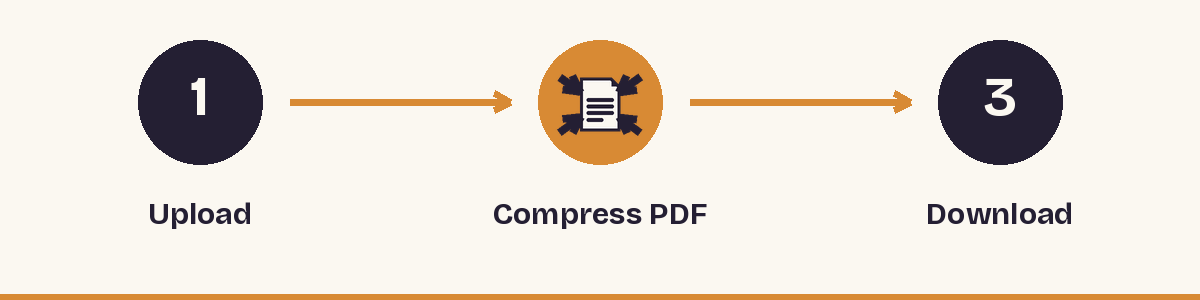
- Open the Compress PDF tool and upload the file.
- Choose a compression level. Start with the lighter one; use the stronger one only if the result is still above the limit.
- Download the result and check its size in your file manager, not in your head: 1 MB is 1,024 KB, so a "1 MB" limit means at most about 1,000 KB to be safe.
- Open the compressed file and zoom in on stamps, small print and signatures. If you can still read them comfortably, you are done.
When the portal wants an exact ceiling such as 50 KB, 100 KB or 200 KB, the Compress to Exact Size tool lets you pick the target in KB and works on PDFs and images directly in your browser.
If it is still too big
- Re-scan instead of squeezing. For text documents, 150 to 200 dpi in grayscale is enough to read. A colour scan at 600 dpi can be ten times larger for no visible benefit.
- Remove pages you do not need. Many forms ask for one page only, but the file contains the back side, a blank page or an instruction sheet. Use Split PDF to keep only the pages required.
- Shrink photos before they go into the PDF. If you build the PDF from pictures, resize them first and then combine them with the Image to PDF tool.
- Split one big file into parts if the portal accepts several uploads, for example "Document 1" and "Document 2".
Check before you submit
- Is the file name accepted? Some portals reject spaces or special characters. Use letters, digits and underscores.
- Does it open on another device or in a different viewer?
- Is the text still searchable if the form needs that? Compression keeps the text layer of a typed PDF. A scanned page stays an image, see our guide on making scans searchable.
- Did you keep the original? Always compress a copy.
Frequently asked questions
Will compressing a PDF make it blurry?
It can, if you choose a very strong setting on a colour scan. For text documents a moderate setting keeps letters sharp, because the compressor reduces the resolution of embedded images, not the text itself.
What is the difference between KB and MB?
1 MB equals 1,024 KB. A limit of 2 MB therefore means 2,048 KB, but portals sometimes count in thousands, so aim for about 10 percent below the stated limit.
Can I compress a PDF below 100 KB?
Usually yes for one or two pages of text, but a high-resolution multi-page colour scan may not fit. In that case reduce the number of pages or scan again in grayscale at a lower resolution.
Is it safe to upload my certificates?
Files you process on LoveByPDF are deleted automatically a short time after processing. For very sensitive documents you can also use the browser-based exact-size tool, which works locally in your browser.